
Custom Themes
How to theme Coolify Tweaks with TweakCN themes
Coolify Tweaks supports custom themes from TweakCN, a theme editor for shadcn/ui components. You can apply any theme from the TweakCN gallery or create your own.
Getting a theme ID
- Visit TweakCN Theme Editor
- Browse themes or customize your own
- Click the share button and copy the theme ID. If it's a default theme, it contains its name like
claude, or if it's a custom theme, it starts withcfollowed by 24 characters (e.g.,cmh4ecxjc000404l78qwda7o0)
Generate theme URL
The steps to apply a theme depend on your installation method. Select your installation method below to generate the correct URL and see instructions for your setup.
Applying themes
Custom Themes
If you have your own theme CSS and want to make it work with Coolify Tweaks, here's how you can do it:
Create a new CSS file
First, find the CSS you want to use and copy both the light and dark mode contents. (These should follow the ShadCN theme spec.)
:root {
  --background: oklch(1 0 0);
  --foreground: oklch(0.145 0 0);

  --primary: oklch(0.205 0 0);
  /* ... */
}

.dark {
  --background: oklch(0.233 0.014 304.7);
  --foreground: oklch(0.9938 0.0013 106.4231);

  --primary: oklch(0.922 0 0);
  /* ... */
}
Import the Theme into TweakCN
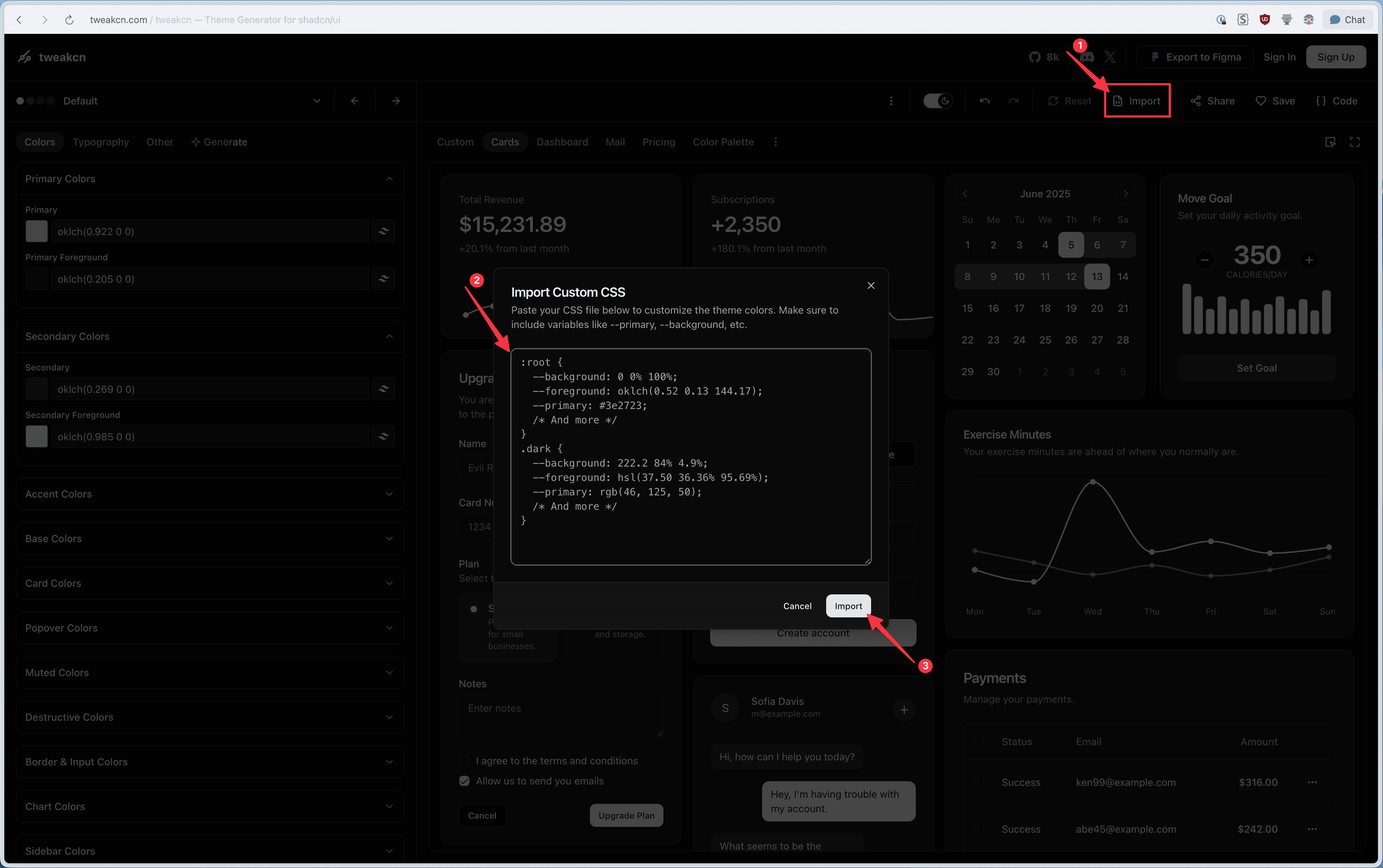
Go to TweakCN Theme Editor and click the "Import" button.
Then, paste the CSS file contents into the "CSS" field and click the "Import" button.
Share the Theme
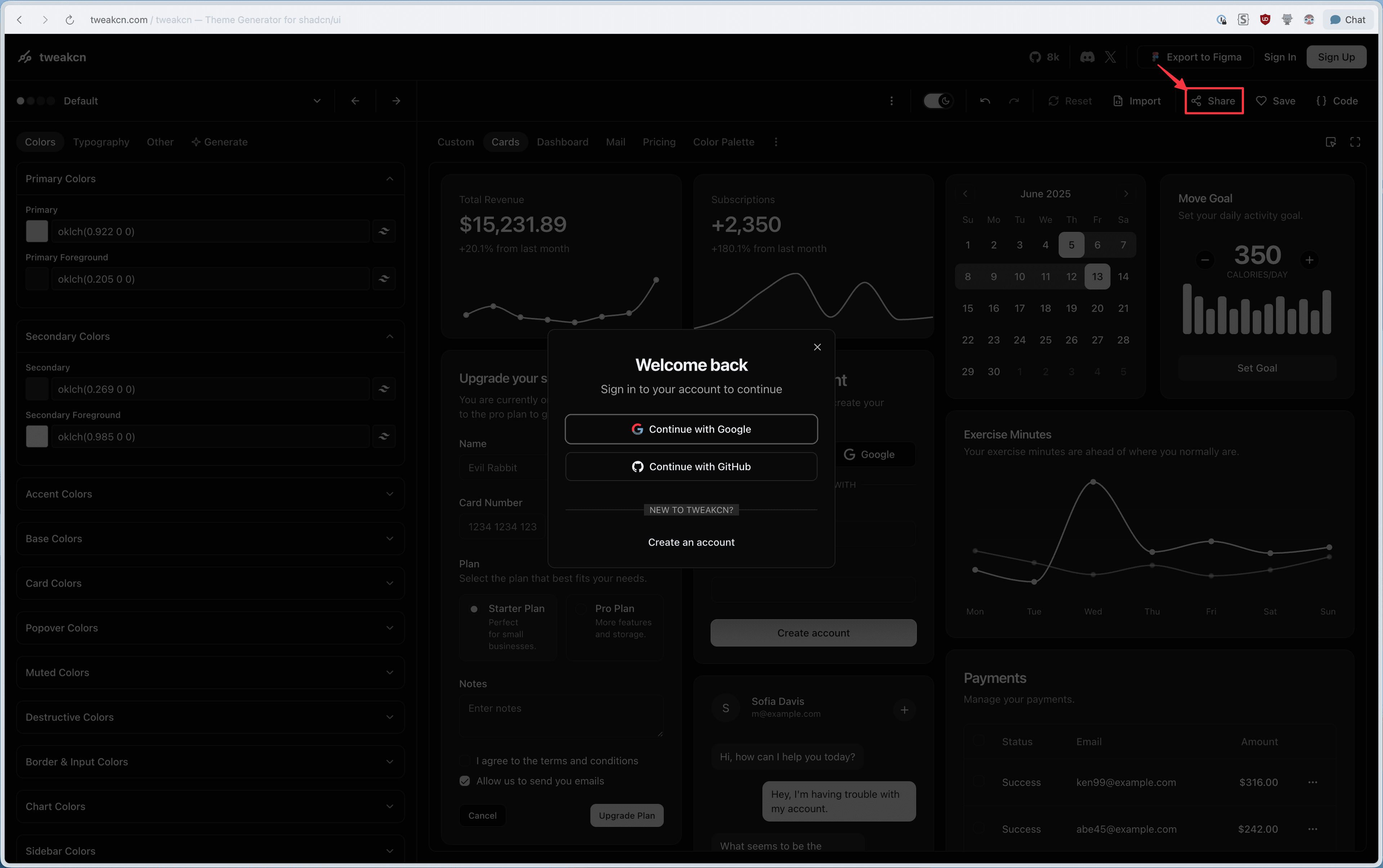
Click the "Share" button and authenticate with TweakCN.
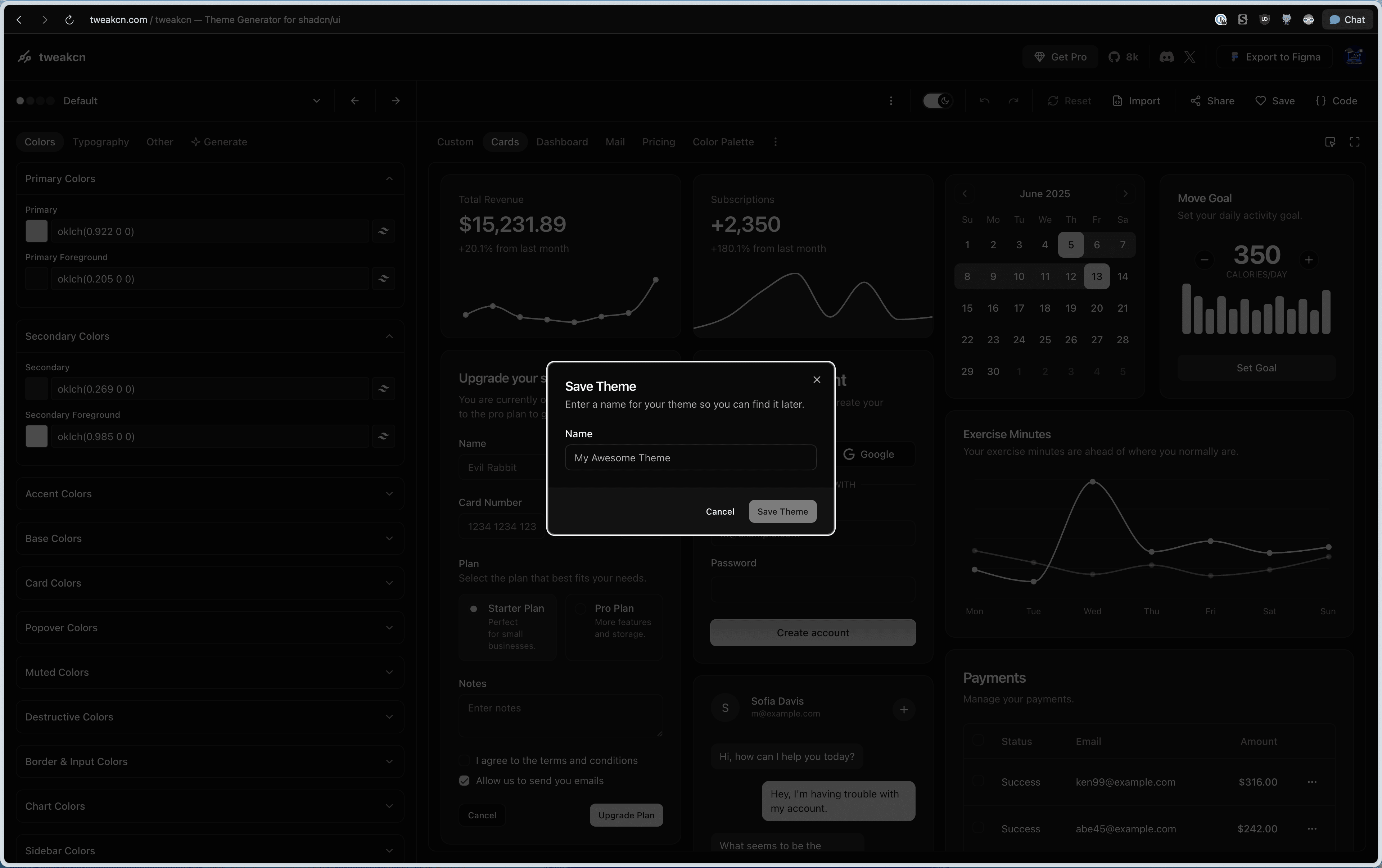
After authenticating, you will be asked to name your theme.
Now, you'll see the theme ID in the URL. Copy it.
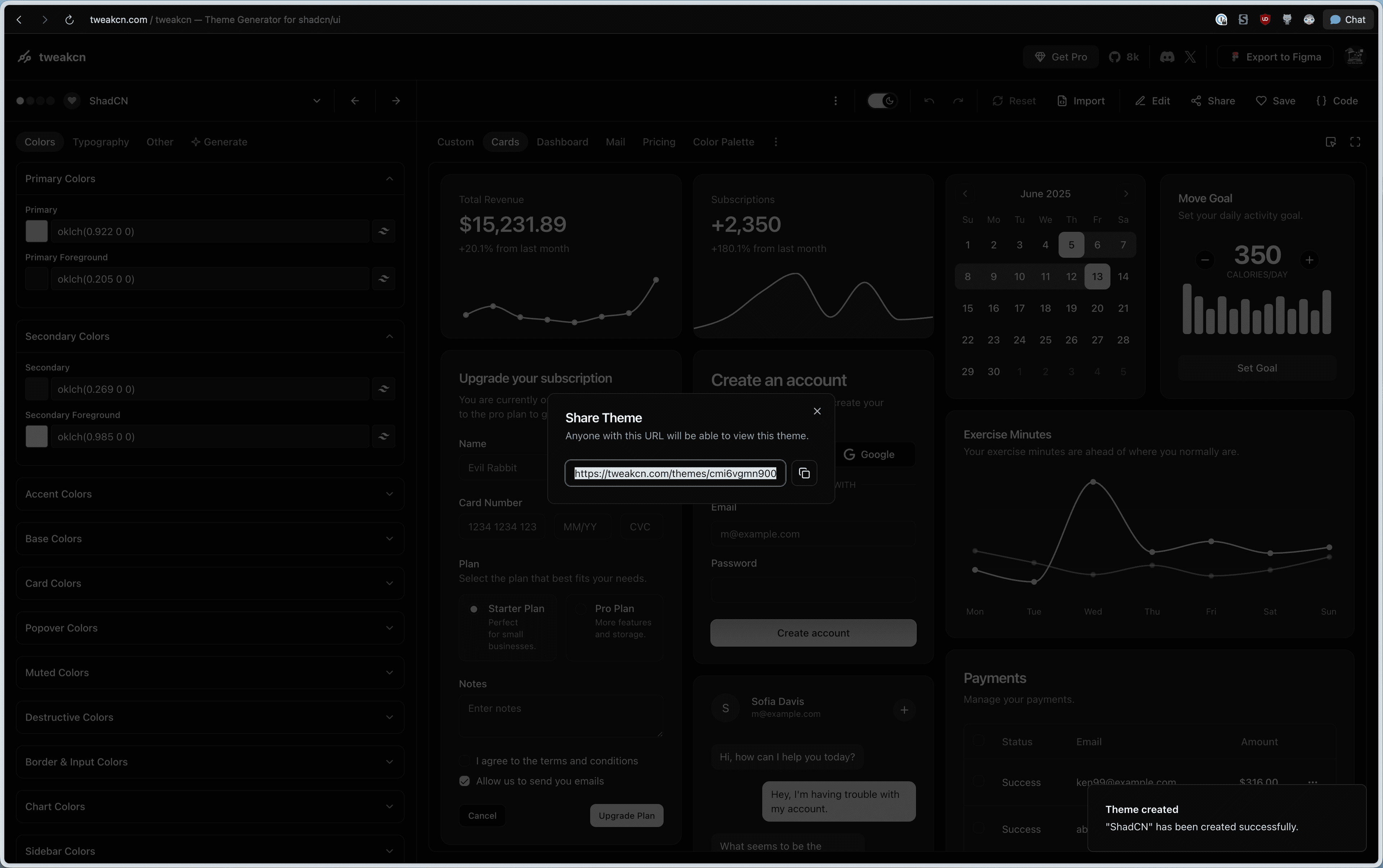
Note: The theme ID is the string after tweakcn.com/themes/ in the URL. It will look something like cmh4ecxjc000404l78qwda7o0.
Apply the Theme
Now, you can apply the theme to your Coolify Tweaks instance.
https://coolify-tweaks-api.techwithanirudh.com/release/latest/?theme=THEME_ID&asset=main.user.cssReplace THEME_ID with the theme ID you copied.
That's all! You can now use your custom theme with Coolify Tweaks.
Video Guide
If you prefer watching instead, here's a short walkthrough:
Tips
- Theme updates: When you update a theme in TweakCN, the changes apply automatically since the theme ID stays the same
- Browser cache: If theme changes don't appear, try a hard refresh (
Ctrl+Shift+RorCmd+Shift+R)
Last updated on